Revit to Rhino Interop
Bring a live Revit model into Rhino on layers named after the model.
Instant download after checkout. All sales final. Digital products are non-refundable.
Doesn't work as described? Email hayder [at] hayderalbeer [dot] com and I'll fix it or send a replacement. No refund needed, just a working tool.
Version 1.0 · Prepared 2026-07
Screens
-
The sample model rebuilt in Rhino on category layers -
The same model in Revit and then in Rhino -
All 20 category layers in the Rhino layer panel -
The same transfer seen from above -
The same model layered by Revit level instead -
The controls in Grasshopper -
The whole definition in Grasshopper
What it does
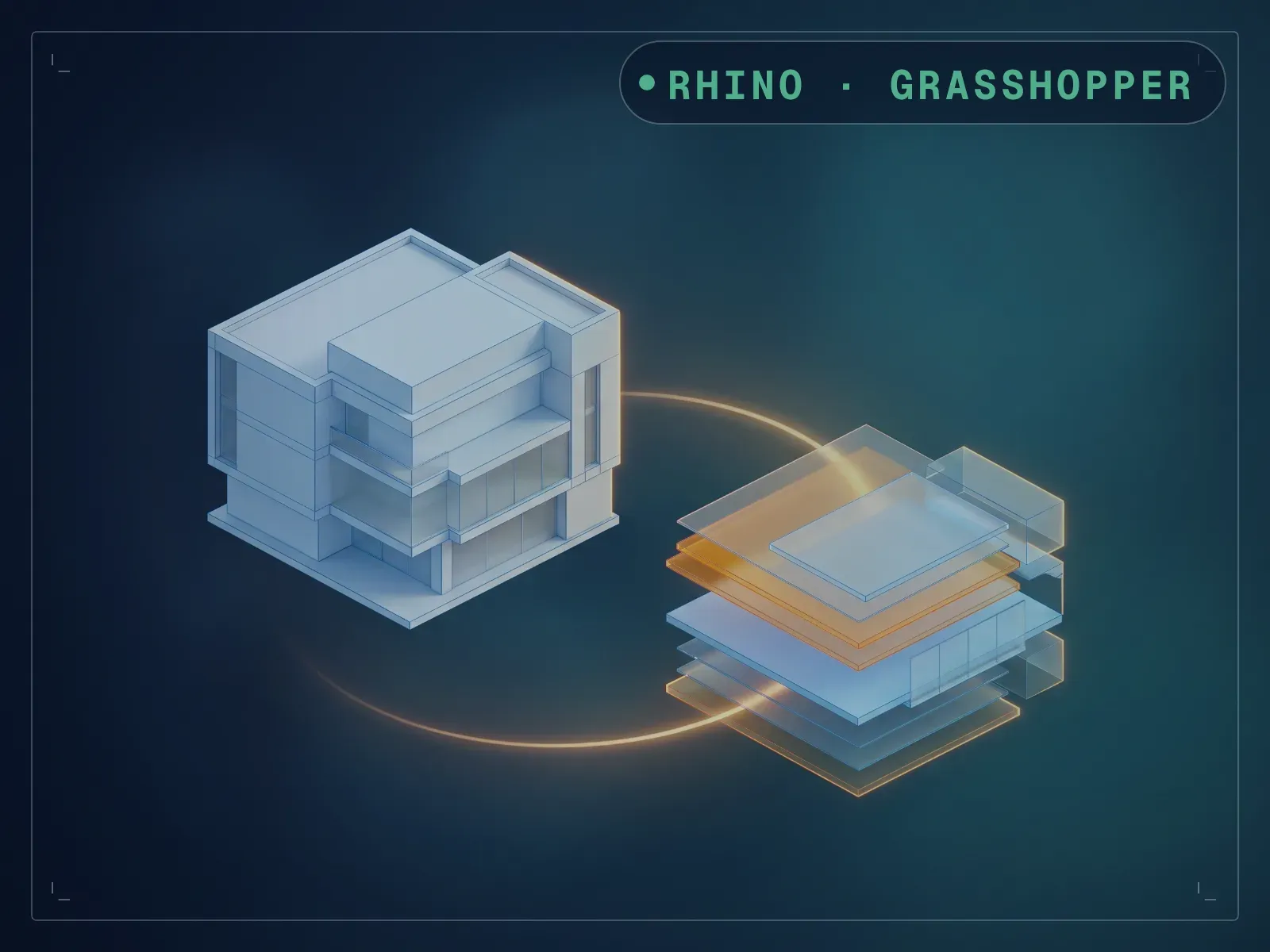
Getting a Revit model into Rhino usually means an export, an import, and a pile of unlabelled geometry on one layer. This definition runs inside a live Revit session through Rhino.Inside.Revit and bakes Revit elements straight into the Rhino document on layers named after the model itself. Pick what to take — every element, the categories you tick, or a manual selection — then pick how to organise it: by Revit category, by level, or by the value of a parameter. Run against the Autodesk architectural sample, it brought 5,574 Revit elements across as 8,358 Rhino objects on 20 category layers — flat layers, with sub-categories carrying Revit’s own pipe naming (Doors|Glass, Doors|Panel, Stairs|Supports, Windows|Frame/Mullion). Switched to level layering, the same model came across as 12,734 objects on 41 layers, each level a parent layer with its categories inside it. Two things to know before you start: the file ships with the Grasshopper solver switched off and its four bake components disabled, so nothing happens until you enable them, and it does not write Revit parameter values onto the Rhino object attributes.
What is included
- 00_Revit Model to Rhino Model_V3.gh — the definition, 260 components
- parameter_name_and_values_component.gh — a small helper for reading a parameter’s name and values
- README.md
How it works
- 01
Open your model in Revit, then Rhino.Inside → Start, and open the definition in Grasshopper.
- 02
Enable the Grasshopper solver and the four Bake Objects components — the file ships with both switched off.
- 03
Choose Element Selection, then the layering scheme under Rhino Layer.
- 04
For categories, set the discipline and tick what you want; for levels, tick the levels or switch to All Levels.
- 05
Press Run. Use Delete Elements in Layer to clear a layer before running again.
Parameters
The sliders and inputs the tool exposes.
Questions about this product
I press Run and nothing happens.
The file ships switched off: the Grasshopper solver is disabled at document level and all four Bake Objects components are disabled individually. Enable the document, right-click each Bake Objects and enable it, then press Run. It is a sensible default — it stops a model of several thousand elements baking the moment the file opens — but nothing on screen tells you, so this is the first thing to check.
It opens with warnings about Revit elements that could not be found.
The Select Graphical Element component remembers whatever it was last pointed at, and that was the author’s model, so 17 references dangle in yours. They only matter if you use the Select Graphical Elements mode — point the component at your own selection and they clear.
What do the layers actually look like?
On Revit Categories you get a flat list — one layer per category (Walls, Floors, Roofs, Ceilings, Furniture, Structural Columns, Structural Framing, Curtain Panels, Curtain Wall Mullions, Stairs, Doors, Windows, Generic Models), and sub-categories sit alongside them under Revit’s own pipe naming, Doors|Glass and Stairs|Supports rather than nested under Doors and Stairs. On Revit Levels you do get real nesting: a layer per level with those categories as sublayers inside it, so 01 ‑ Entry Level, 02 ‑ Floor and so on each hold their own Walls, Floors and Curtain Panels.
Does it copy parameter values onto the Rhino objects?
No. A parameter value can drive the layer name, but the values themselves are not written onto the Rhino object attributes.
Which plugins do I need?
Rhino.Inside.Revit and eleFront. Both are free. Rhino.Inside.Revit is what puts Rhino and Grasshopper inside a running Revit session; eleFront supplies the bake, attribute and layer components the definition is built on.